- What you need
- Introduction
- Installation
- Remote signature account or QES account
- Time Stamp Account
- Disconnect remote signature account and time stamp account
- End activity
 Guide to Installation and Configuration Infocert Sign (Mobile)
What you need
- A valid sign certificate;
- Infocert Sign mobile app installed in your Smartphone or tablet;
- The phone number you entered in the registration process to receive SMS with OTP number;
- An internet connection.
Introduction
With Infocert Sign Mobile you can digitally sign and time stamp electronic documents using your smartphone and remote signature certificate/QES certificate.
Installation
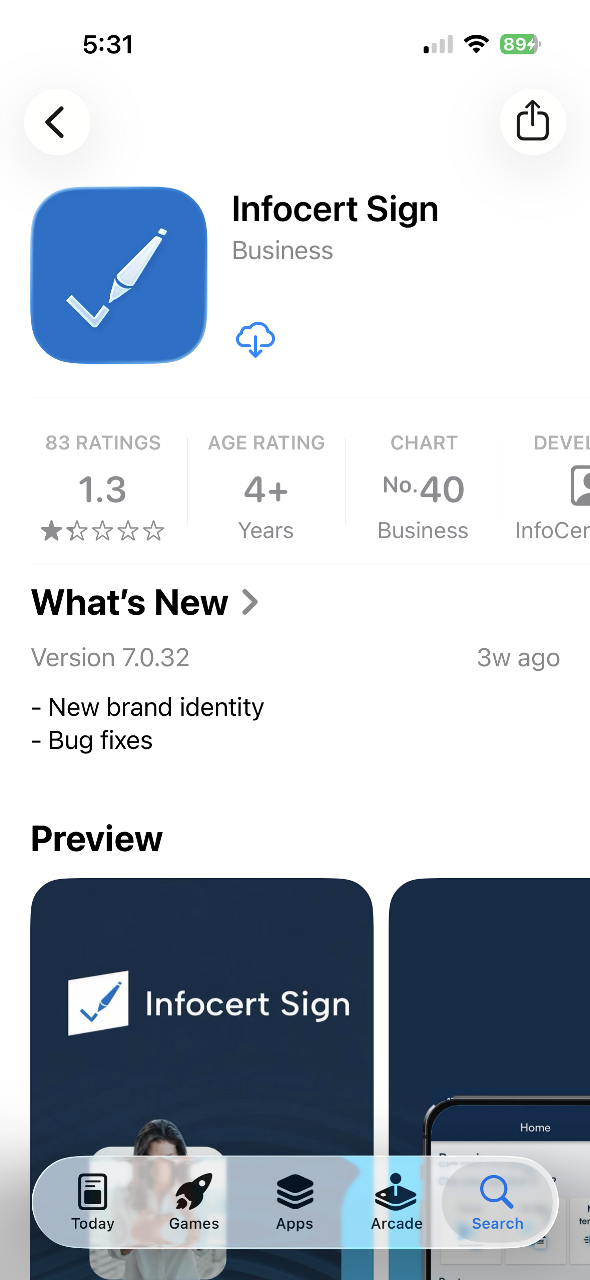
Installing the iOS App
On an iOS device, download the Infocert Sign Mobile app from Apple Store. Search for Infocert Sign Mobile, then proceed to install it.
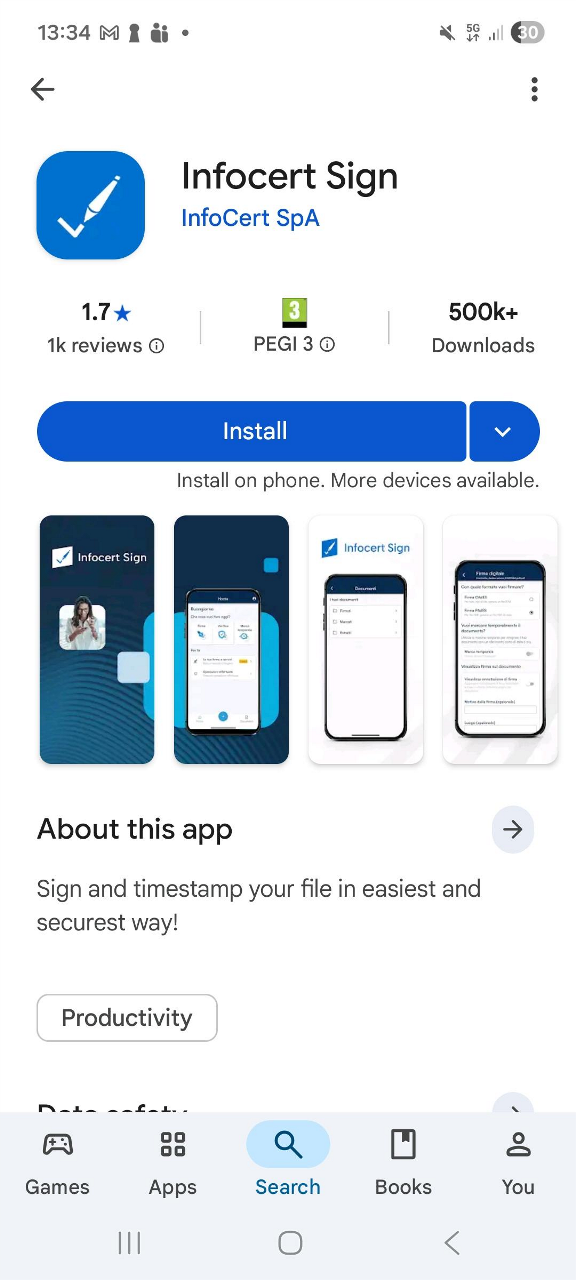
Installing the Android App
On an Android device, download the Infocert Sign Mobile app from Play Store. Search for Infocert Sign Mobile, then tap Install.
Remote Signature Account or QES Account Configuration
- Remote Signature or QES Account
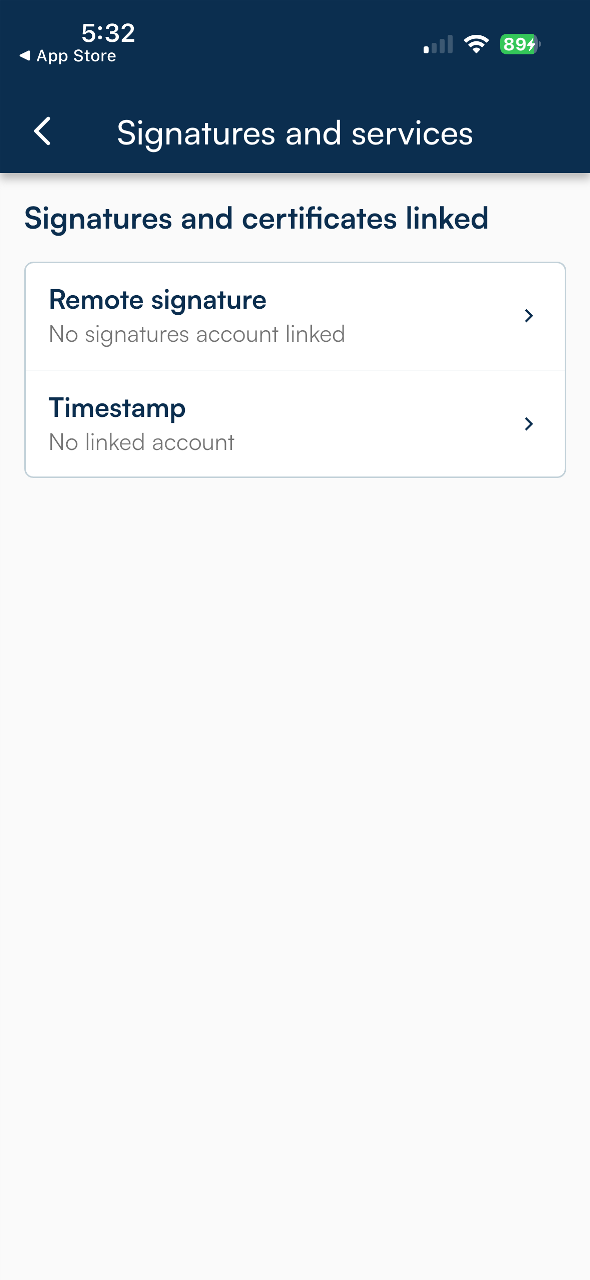
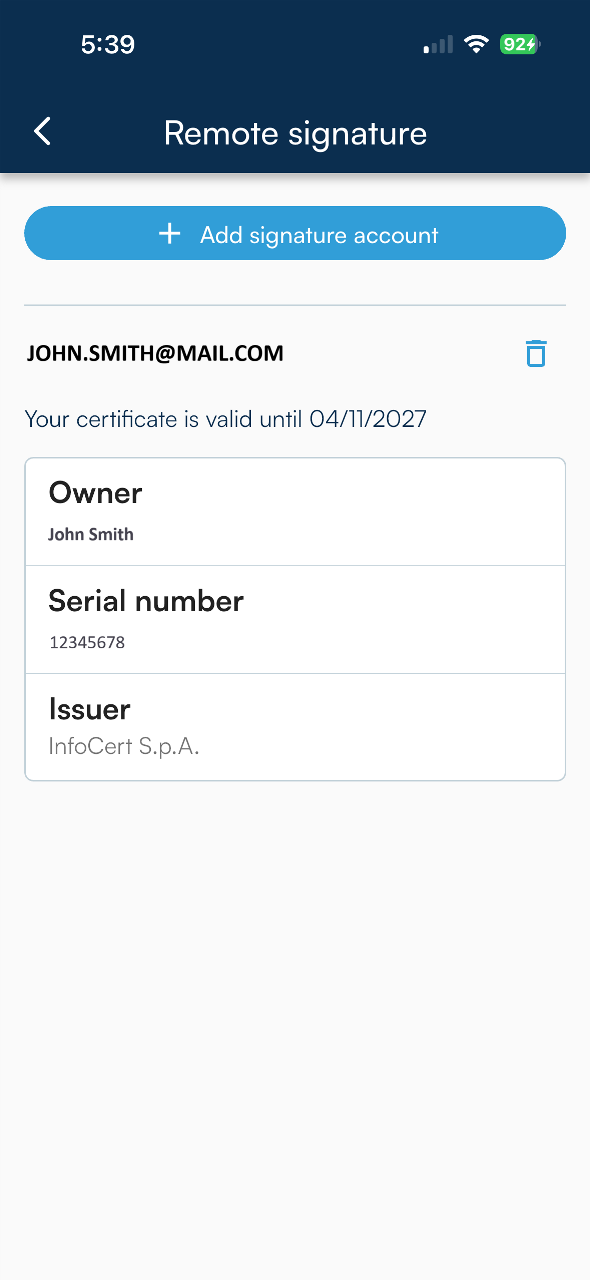
To set up a Remote Signature or QES account, click on Your Signatures & Services and then on Remote Signature.
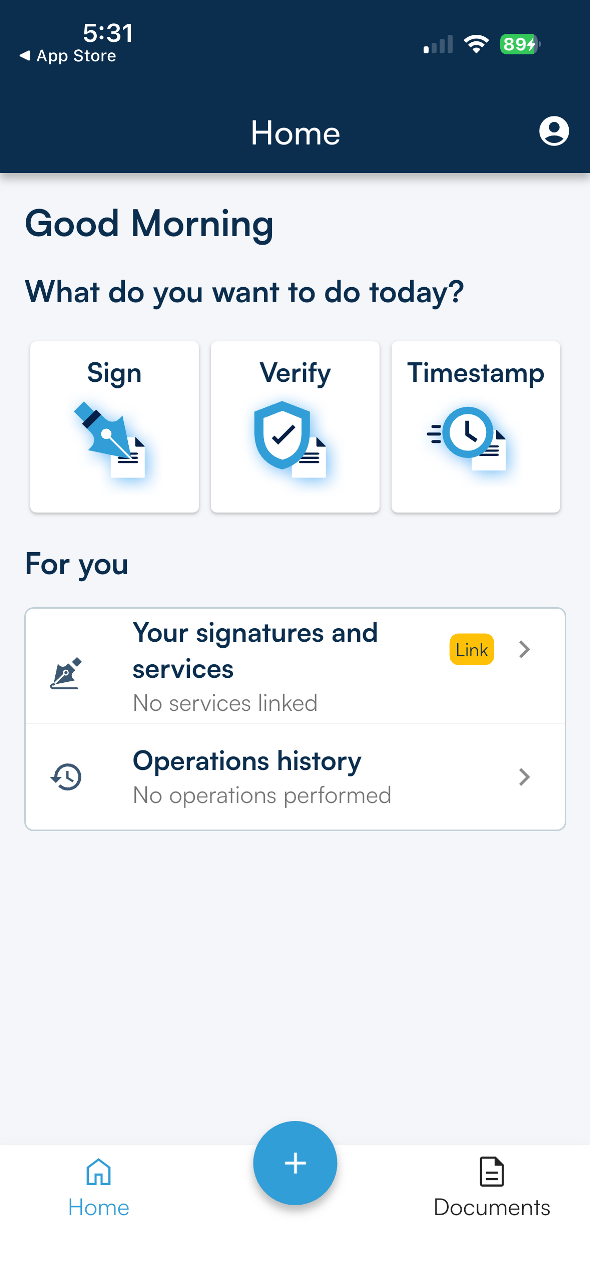
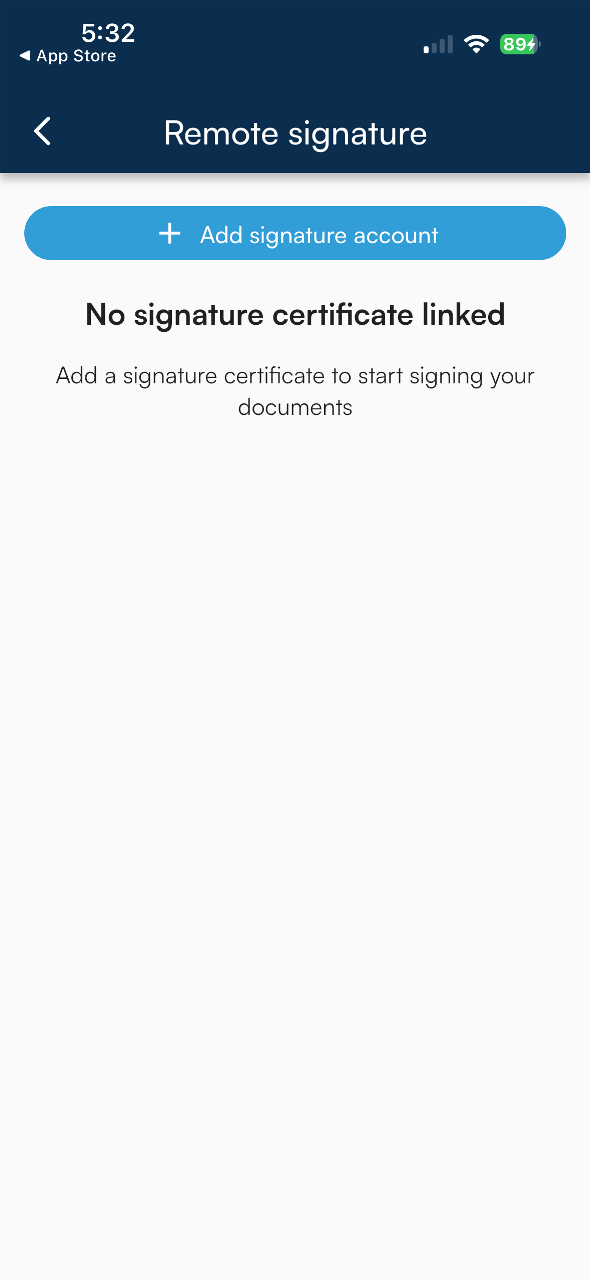
On the next screen, click on Add signature account.
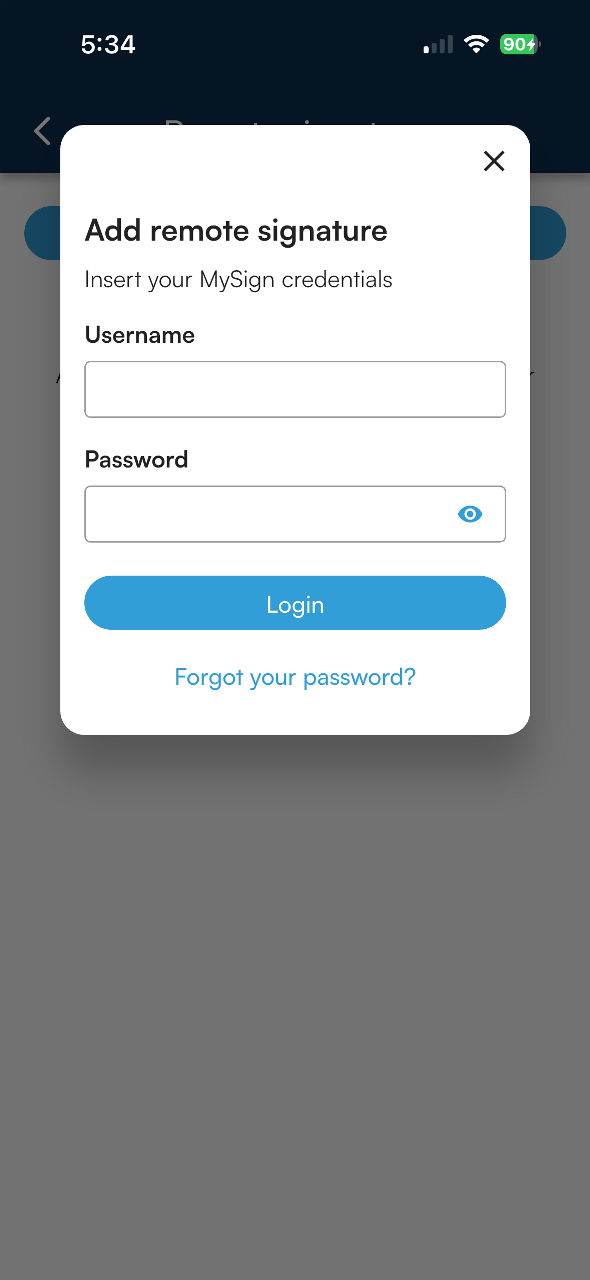
To configure the Remote Signature or QES certificate in Infocert Sign Mobile, you need to enter:
- the Username for access to the service (the one that was assigned by Tinexta Infocert at the time of registration, can be found on the copy of the Registration Request delivered on that occasion or in the email that arrived immediately afterwards with the instructions for activating the certificate);
- the Password (the one used to access the portal dedicated to the holders of a remote certificate, My Sign, and which was customized at the time of activation of the certificate).
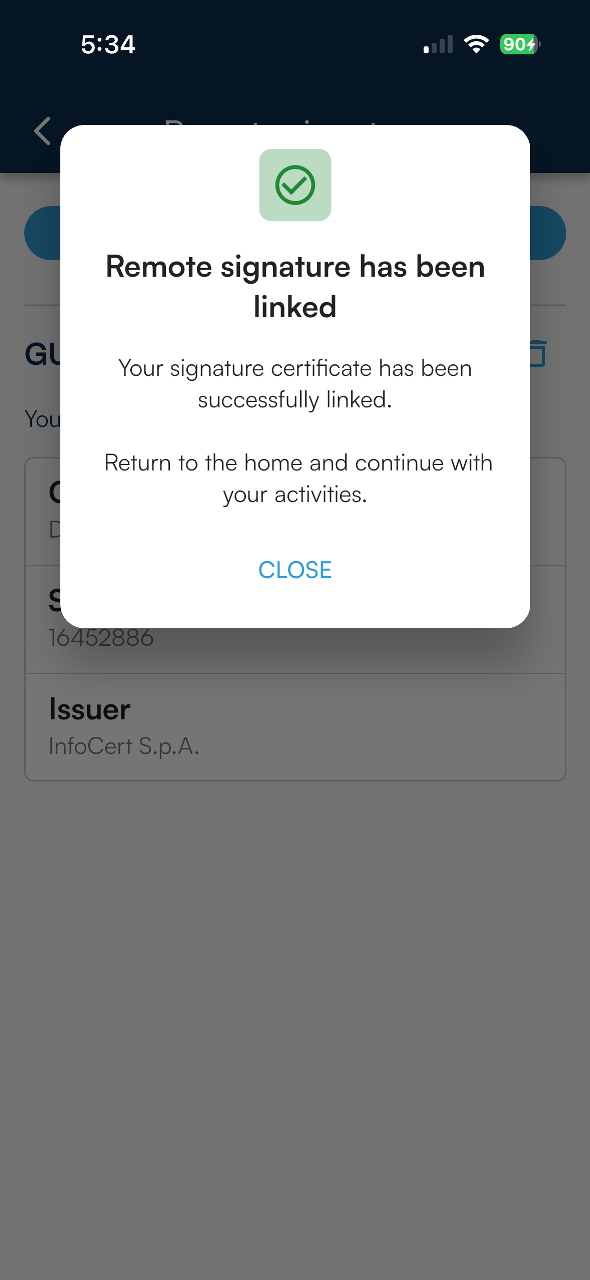
Upon completion, you will receive confirmation that the account have been configured correctly.
Time Stamp Account
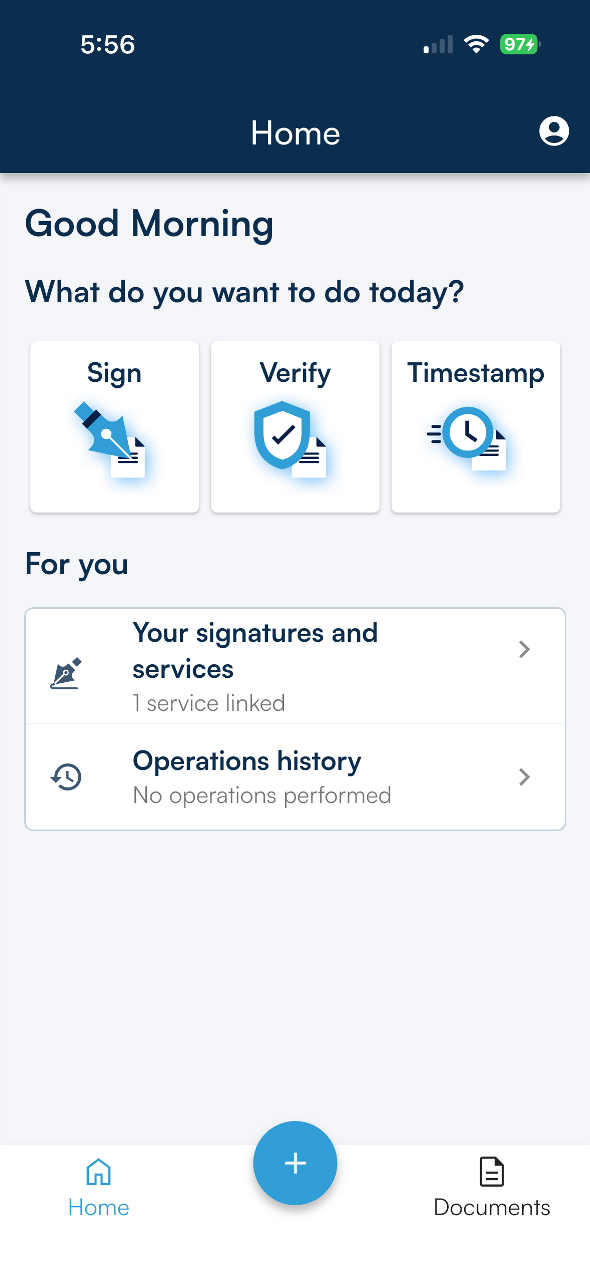
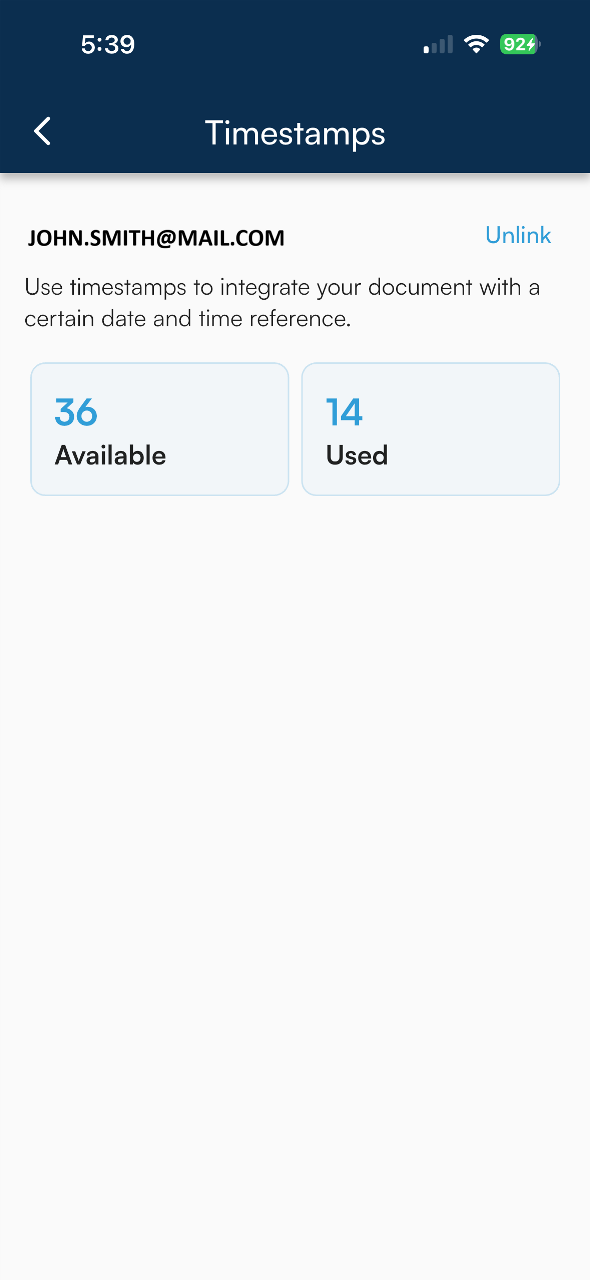
To set up your Timestamp account, click on Your Signatures and Services and then on Timestamp.
After entering your Infocert account credentials, tap Login to continue activation.
Once you have finished, you will receive confirmation that the time stamp service has been successfully linked to Infocert Sign Mobile. When you sign in, Infocert Sign Mobile offers you the option of time stamping documents when you sign them, and it updates the number of time stamps available.
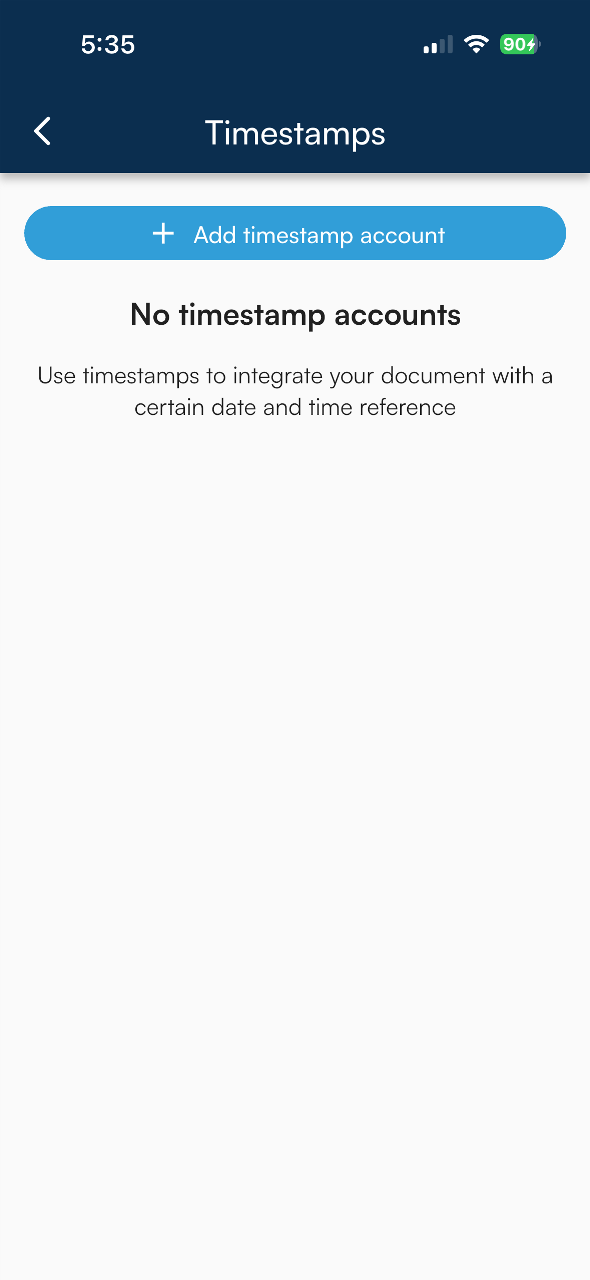
To log in, you need to use your service login credentials or your Tinexta Infocert Store credentials. After providing the credentials, to continue with the activation, click on the Login button.
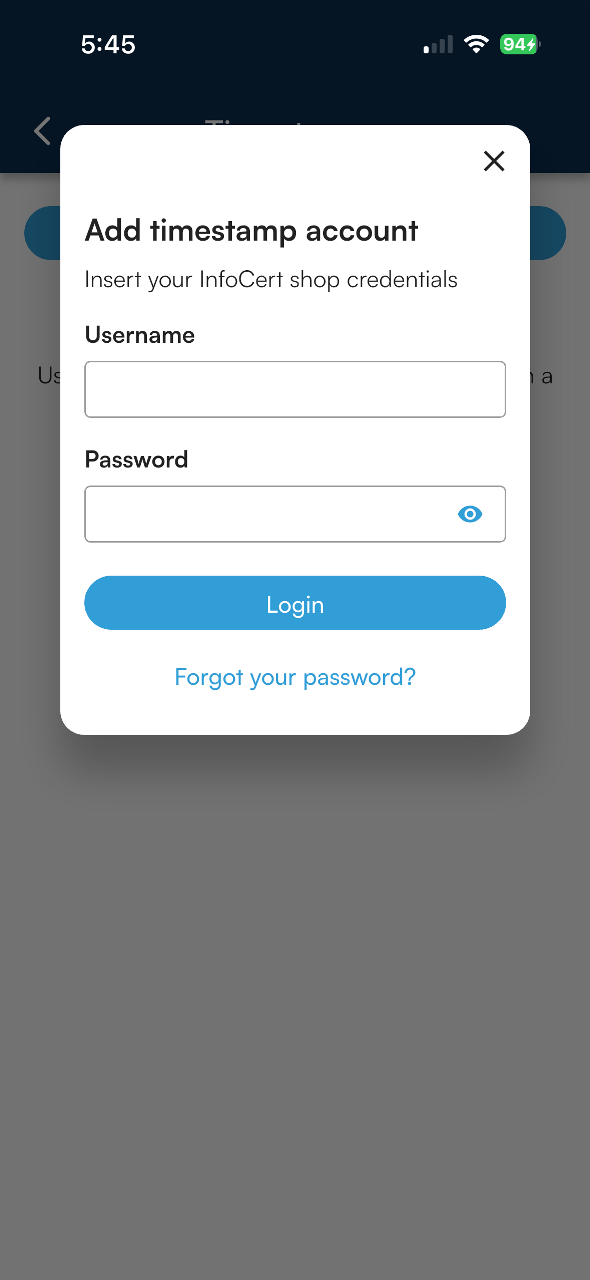
Finally, you will receive confirmation that the timestamp service has been successfully connected to Infocert Sign Mobile. When you enter your login credentials, Infocert Sign Mobile offers the option to timestamp documents at the same time as you sign, while also updating the number of timestamps you have.
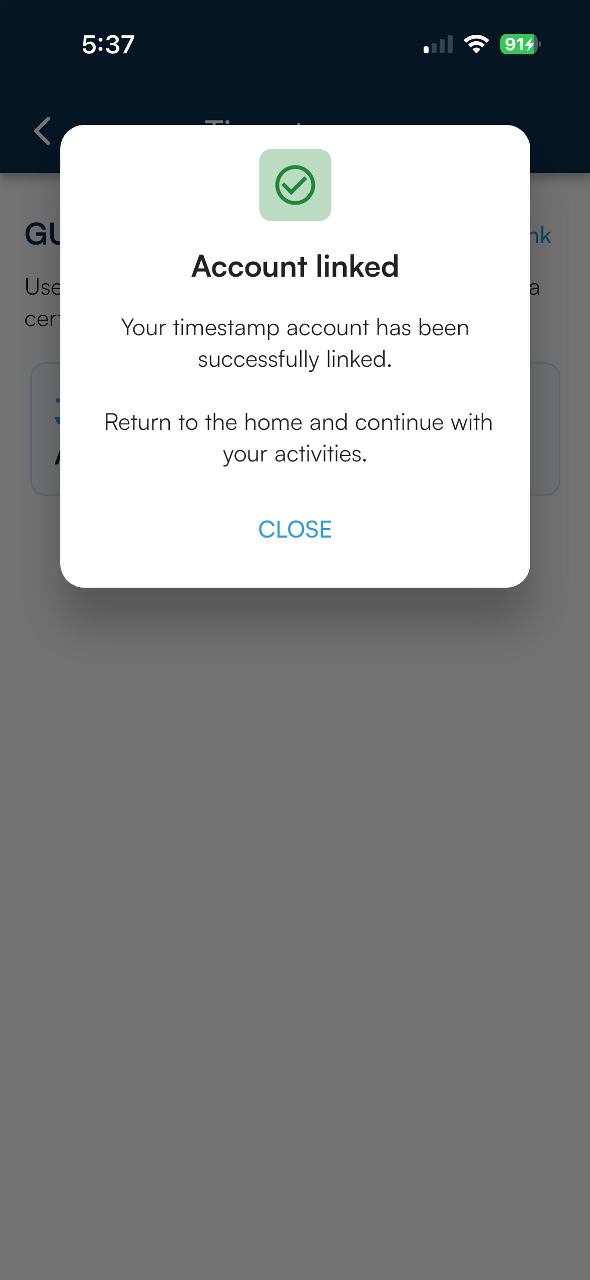
Disconnect remote signature account or QES account and time stamp account
You can disconnect the Remote Signature or QES certificate or time stamp credentials in the Infocert Sign Mobile app at any time.
If necessary, use the Your signatures and services function: simply select the service you want to disable and, once inside, press on the trash can icon to delete the signing certificate or click on the Unlink item to remove the account associated with the timestamps.
End activity
Once configuration is completed you can tap on Home Icon at the bottom of the page and Start using all the app features.
