- What you need
- Start the activity
- Access to Infocert Sign Desktop web features
- Registering a new Tinexta Infocert Account
 Infocert Sign Desktop Account Registration Guide
What you need
- The version of Infocert Sign Dektop suitable for the operating system on the workstation.
Start the activity
Double-clicking the icon launches the Infocert Sign Desktop program.
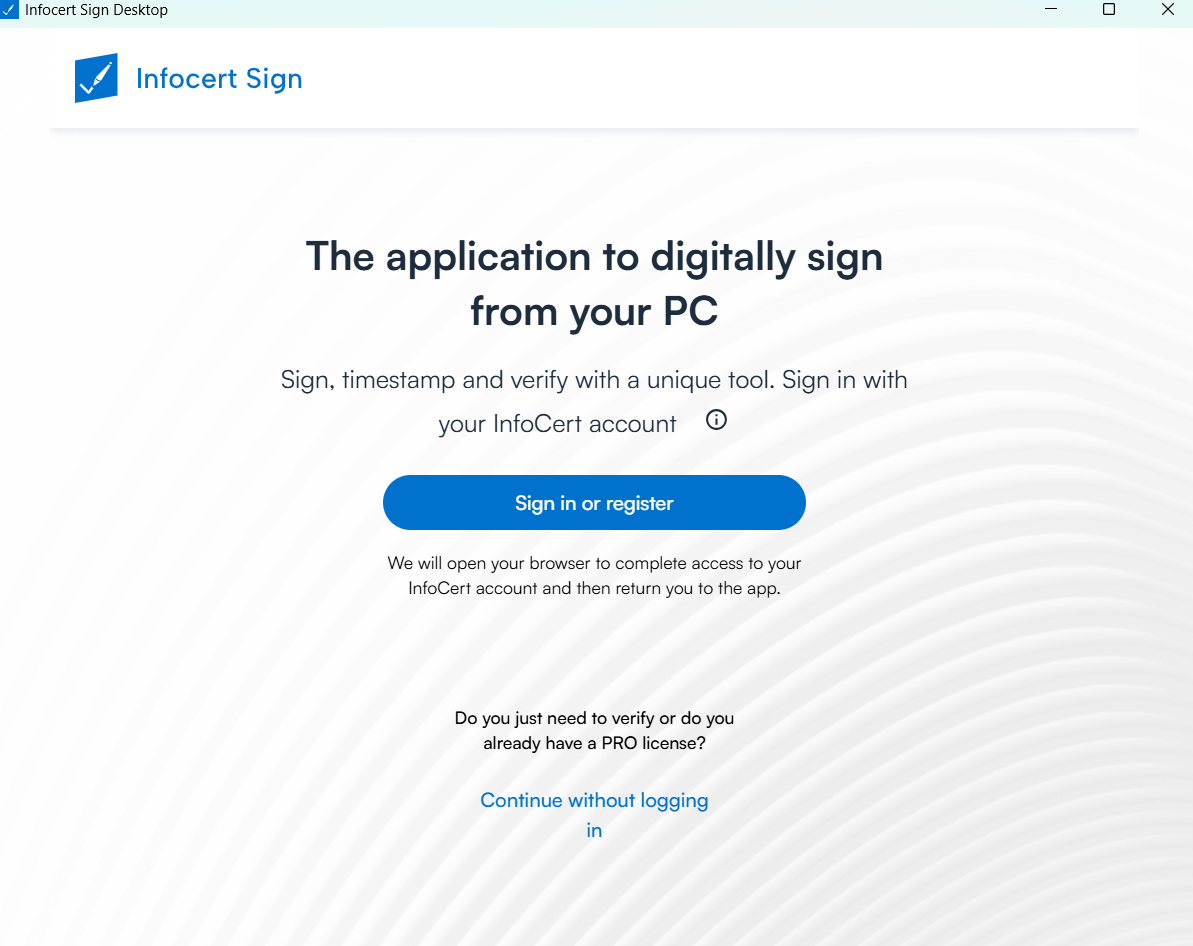
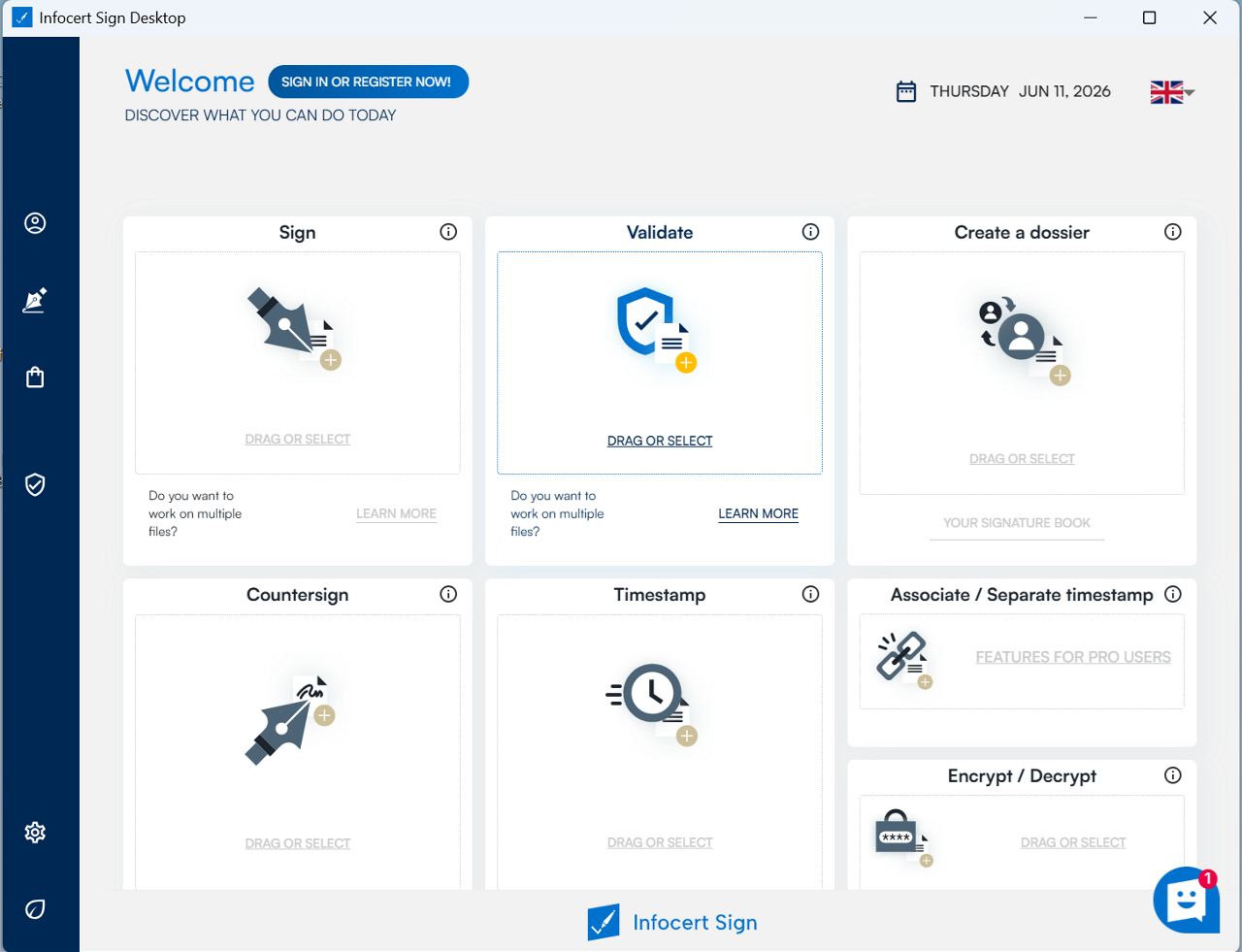
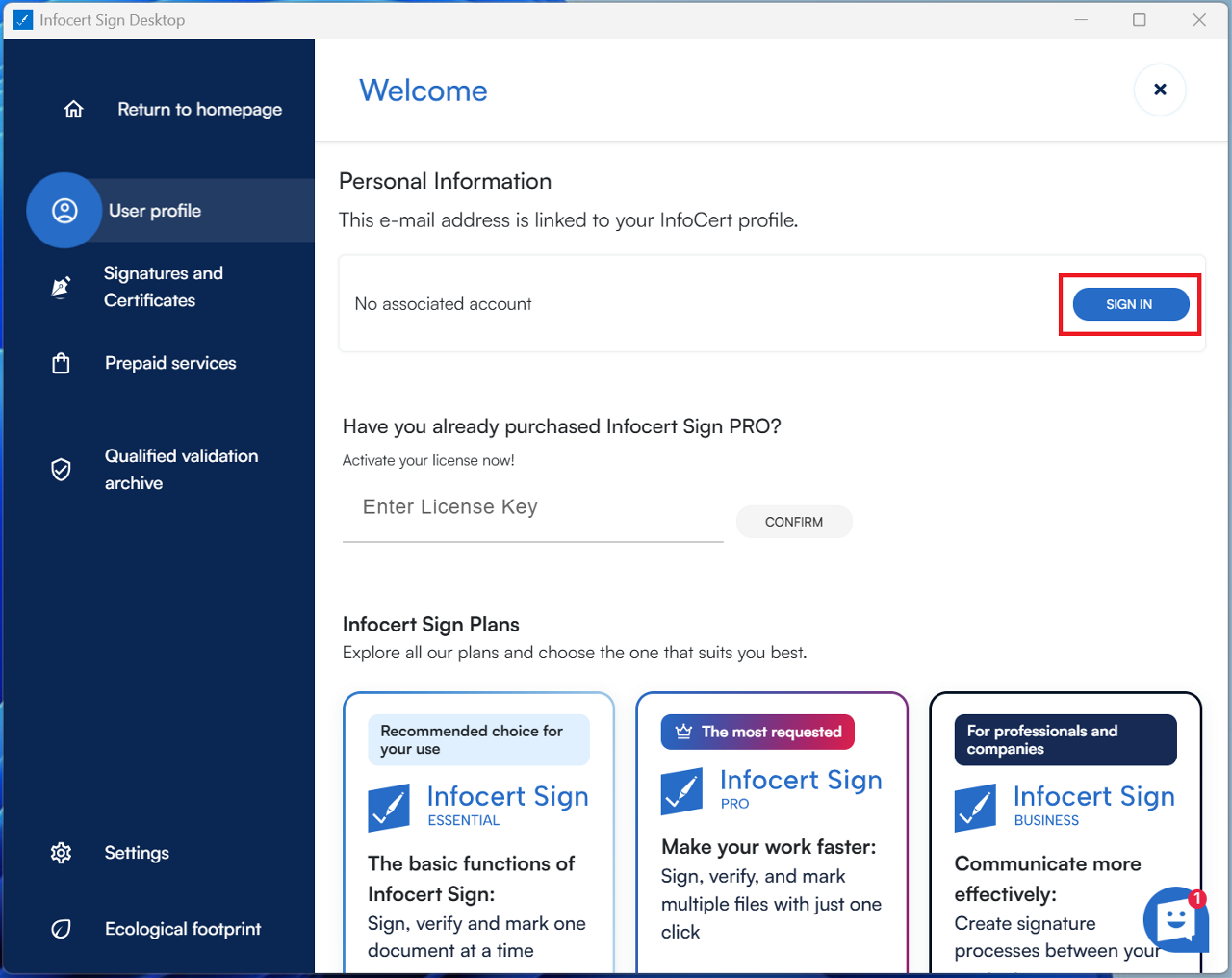
On the Infocert Sign Desktop homepage you will find the Sign in or Register Now button!
One click allows you to be redirected to the authentication page where you can register your new account or log in using one of the Tinexta Infocert accounts you have.
Access to Infocert Sign Desktop web features
Access to the web features that Infocert Sign Desktop offers, regardless of its FREE or PRO version, requires the availability of a registered account.
Log in with an Infocert account
If you already have an Infocert account, for example the one you use to access the Store or for your Legalmail mailbox, Electronic Invoicing or Infocert Sign web services, you can use it exactly as it is to activate the Infocert Sign Desktop web component. Simply enter your email address and password and continue with a click on the Sign In button.
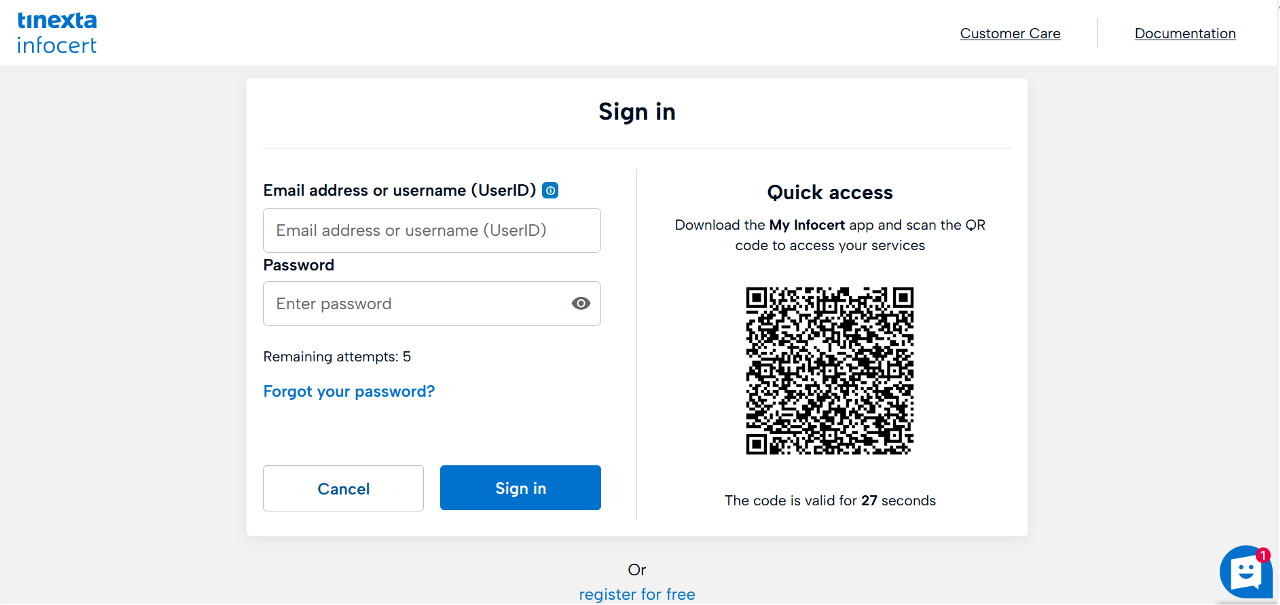
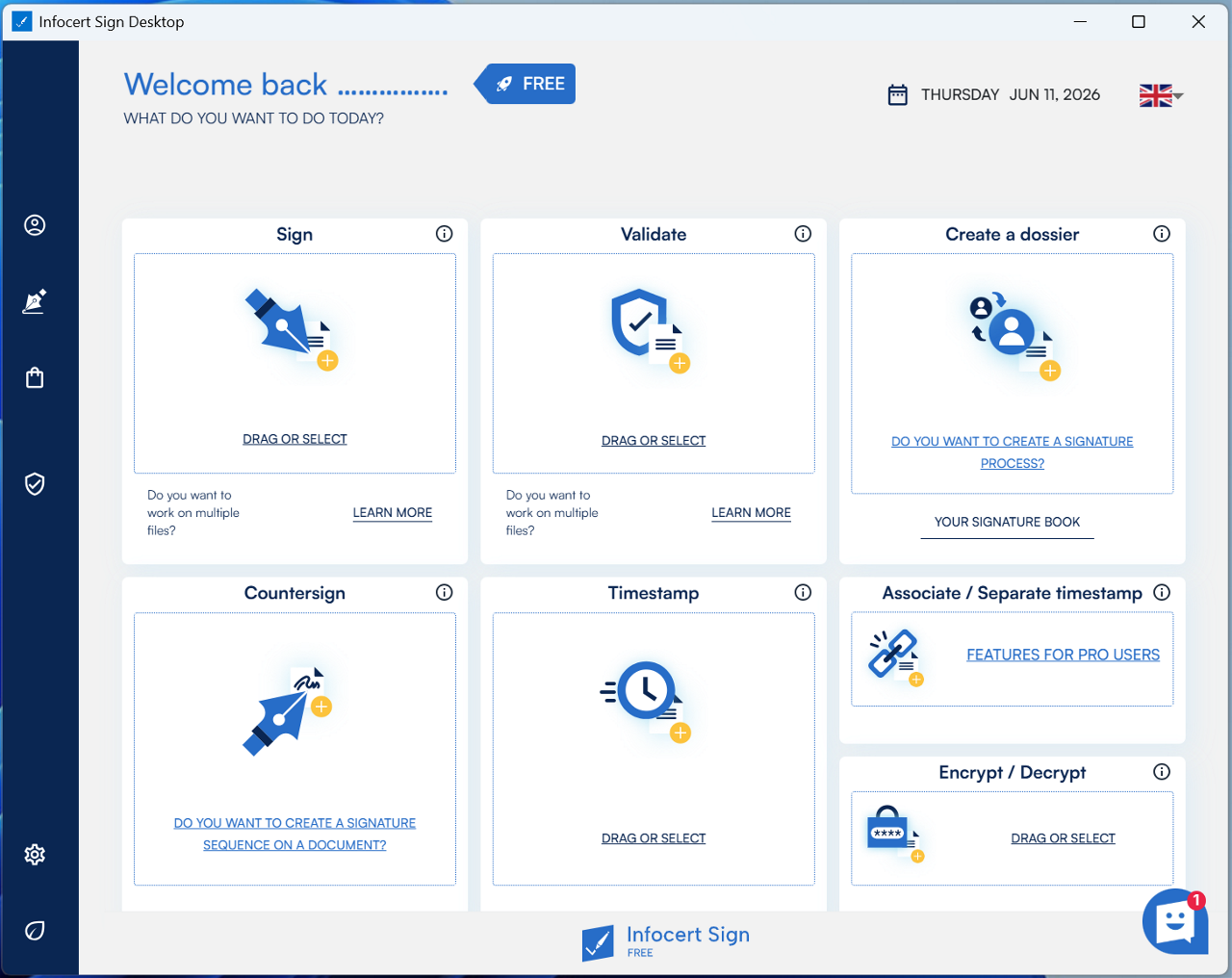
The authentication page confirms that the login was successful.
Registering a new Tinexta Infocert Account
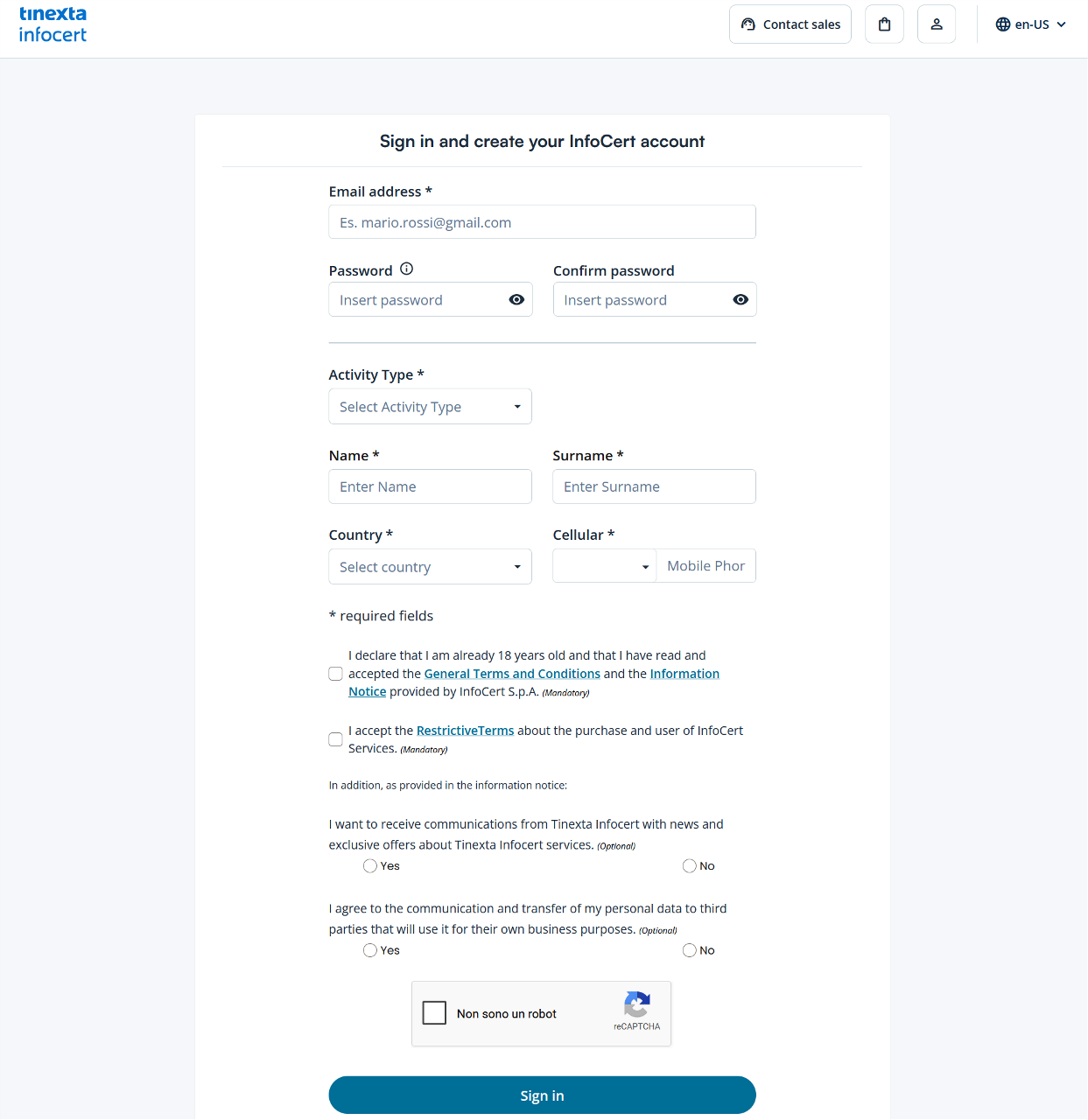
If you don't have a Tinexta Infocert Account, you can register one by clicking HERE.
On the next authentication page it will be possible to enter an email address and choose a password that respects the instructions provided on the screen.
It will be necessary to continue by validating the reCAPTCHA check, indicating your choices regarding the processing of optional data, and finish the operation by clicking on the Sign in button.
You will be directly redirected to the product selection page and you will be able to add the Infocert Sign FREE item to your cart.
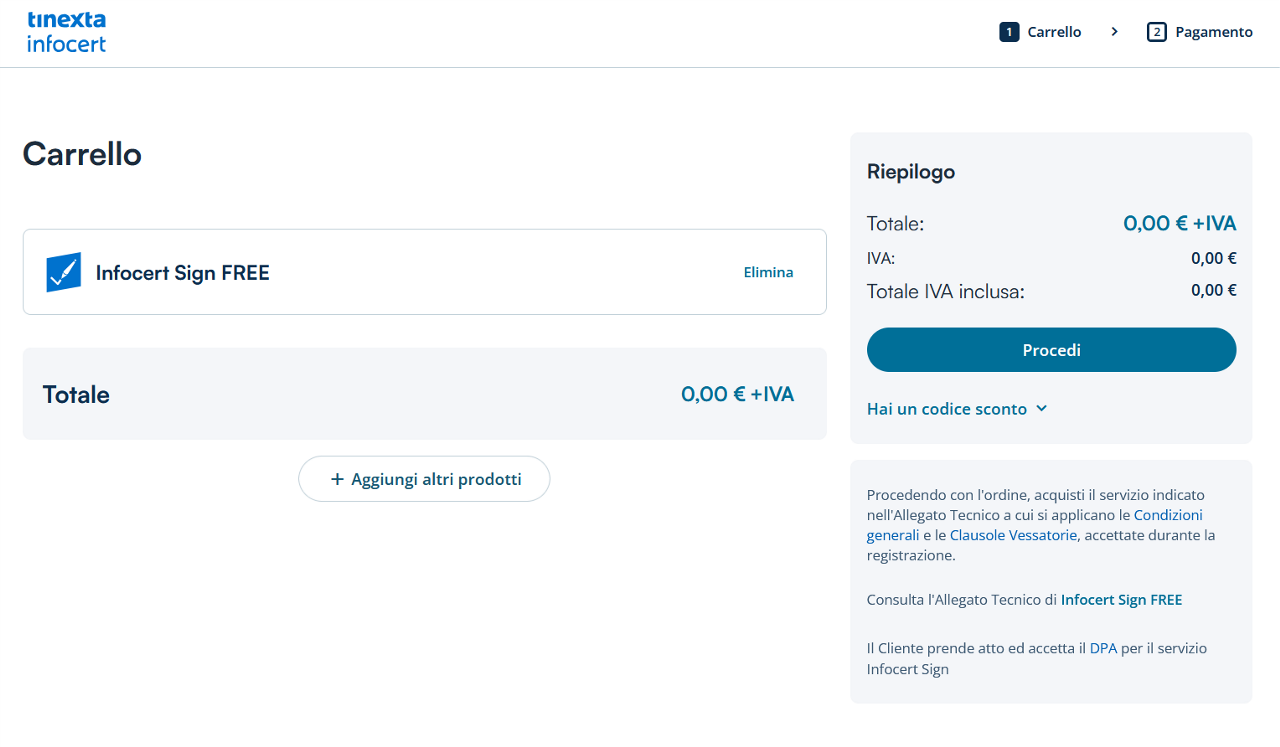
The next window will confirm the operation.
You will receive an email confirming your account creation.
Returning to the homepage of the Infocert Sign Desktop application you will be able to verify that the account has been correctly registered.
From now on you can use the web functions available by connecting to the Infocert Sign Cloud portal or by clicking on the Your Signature Book link on the home page of the application.
