- What you need
- Introduction
- Buy the renewal
 Infocert Sign PRO license Renewal Guide
What you need
- Your active but expiring Infocert Sign license;
- Infocert Sign Desktop installed (if you don't have it, download it HERE for free);
- Your Tinexta Infocert account.
Introduction
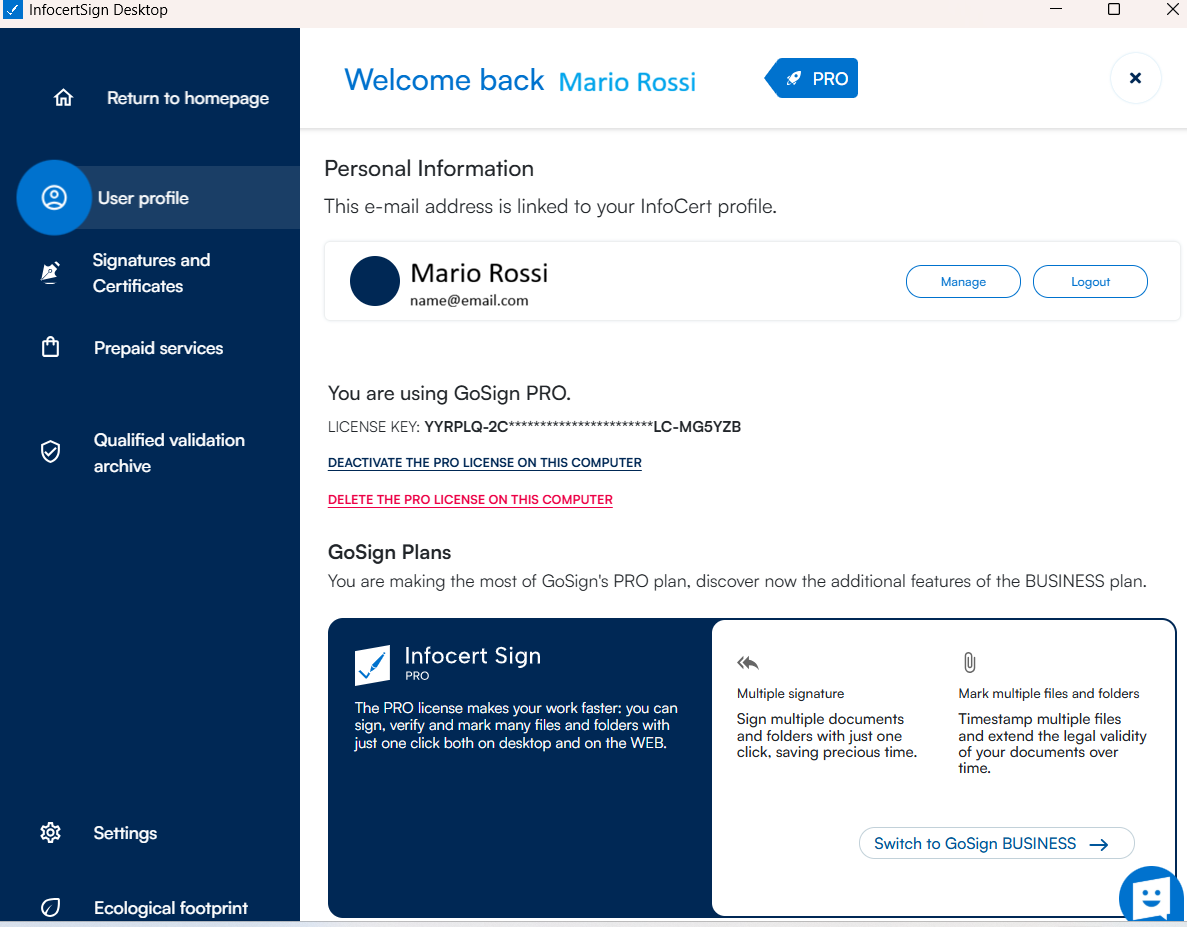
On Infocert Sign Desktop, in the User profile section, you can see - if active - the expiry date of the Infocert Sign PRO license.
To renew your license, click on the Renew your license now button.

Buy the renewal
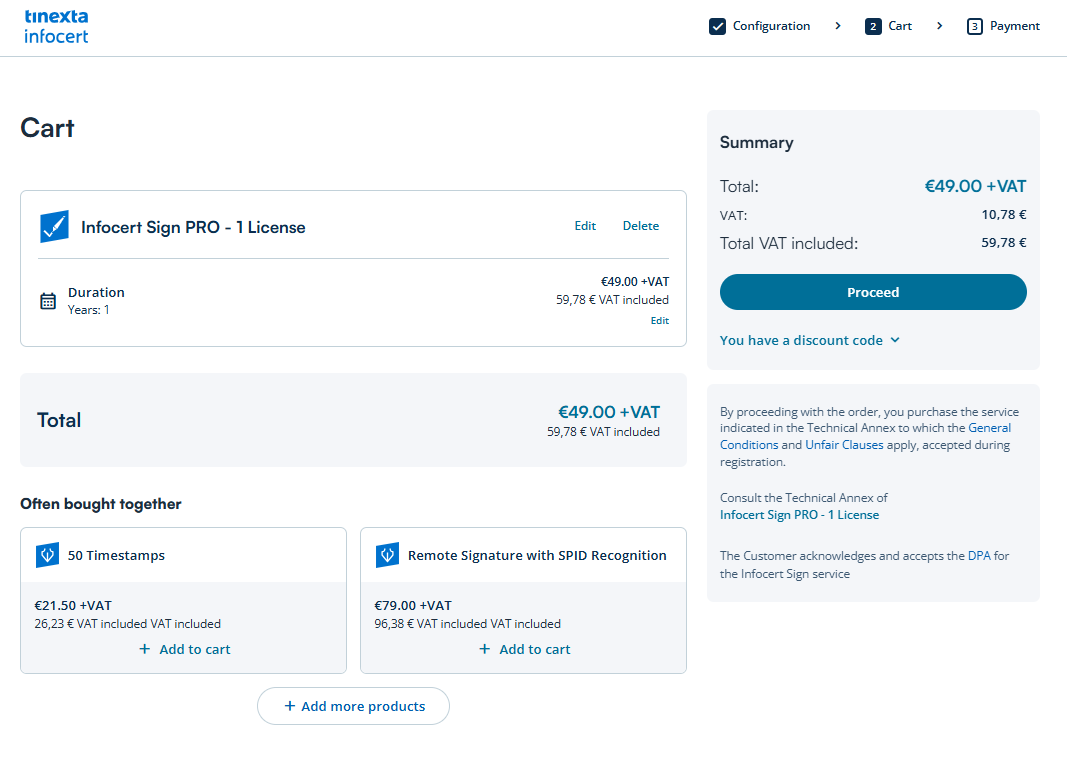
By clicking the button you will be redirected to the shopping cart to purchase the Infocert Sign PRO license renewal.

Click Add to Cart to continue with the checkout process.
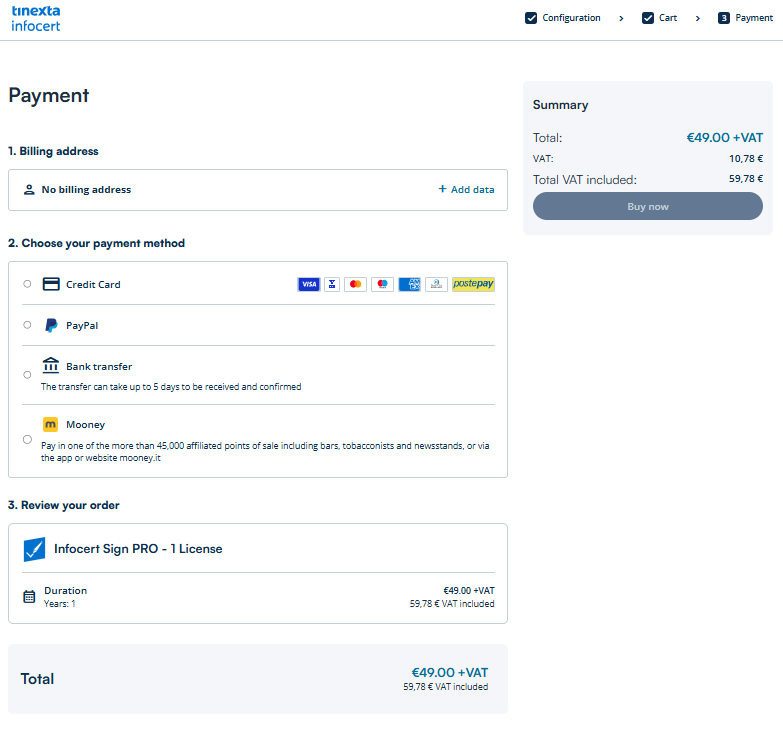
Select your desired payment method and billing information.
Finally, click the "Complete Checkout" button.
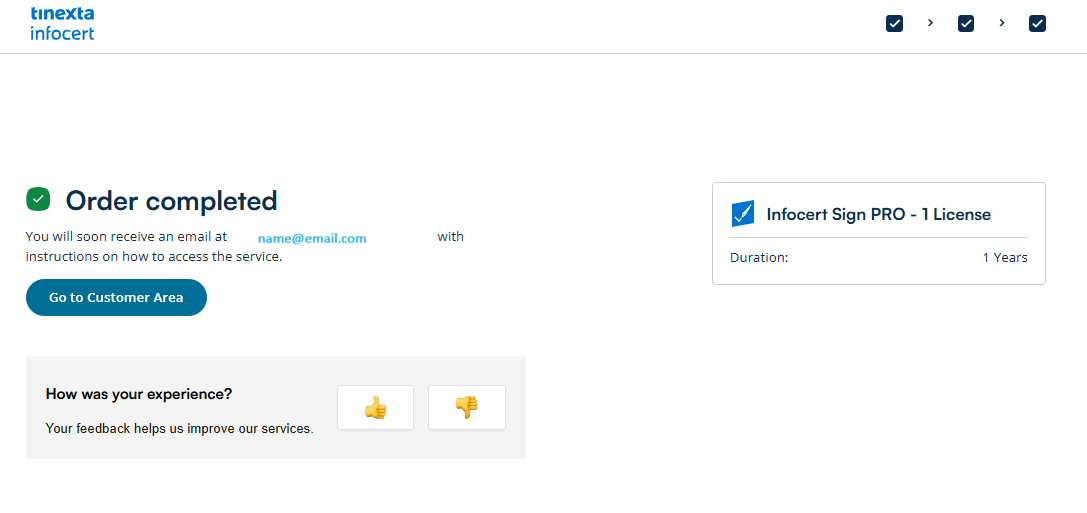
If your purchase was successful, you'll receive a message on your screen.
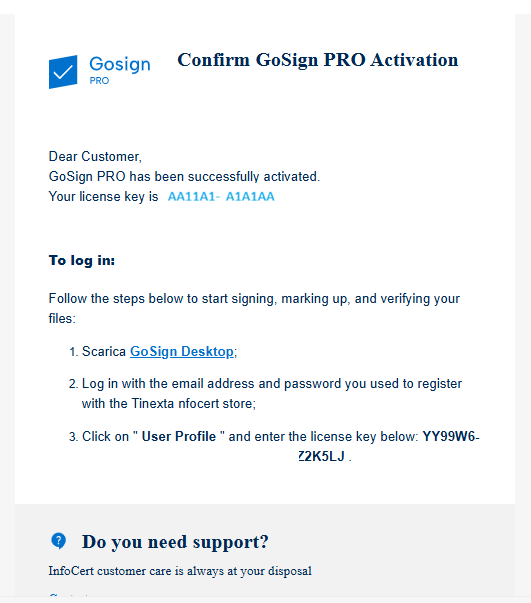
You'll receive a purchase confirmation email.
Click "Go to Reserved Area" to access your Tinexta Infocert reserved area and check the new expiration date of your Infocert Sign PRO license.
Check your email:
Customer Area > Service Management
In your reserved area, you will find the new expiration date for the product you just purchased (Infocert Sign PRO license renewal).

When you restart Infocert Sign Desktop, you will see that the Infocert Sign PRO license expiration warning is no longer present.